Before you begin, review the list of restricted industries: Click Here
If you are unsure, contact support@byzly.com
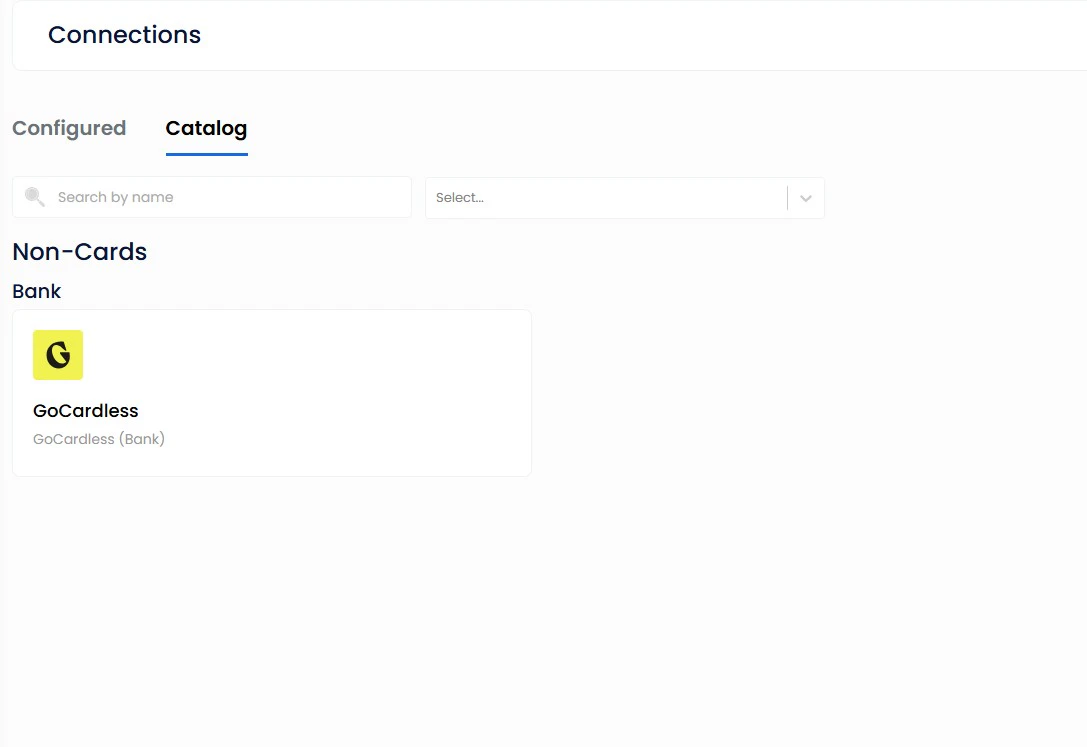
Step 1
Go into your Byzly Catalog and click on GoCardless
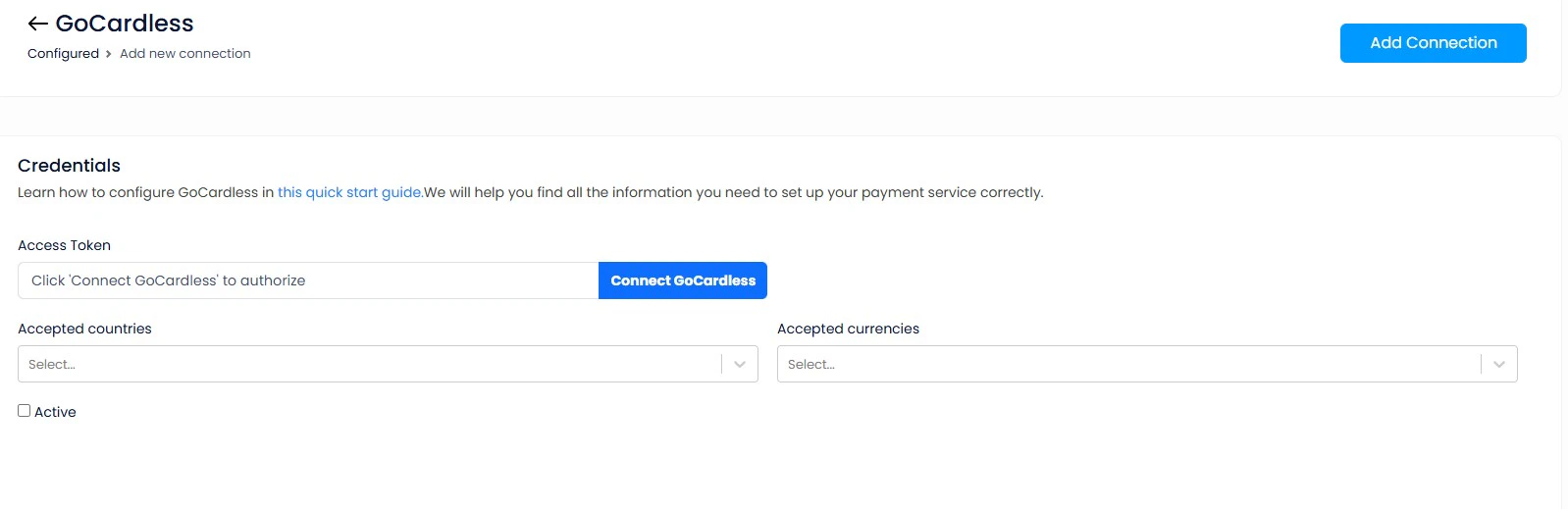
Step 2
Click on ConnectGoCardless
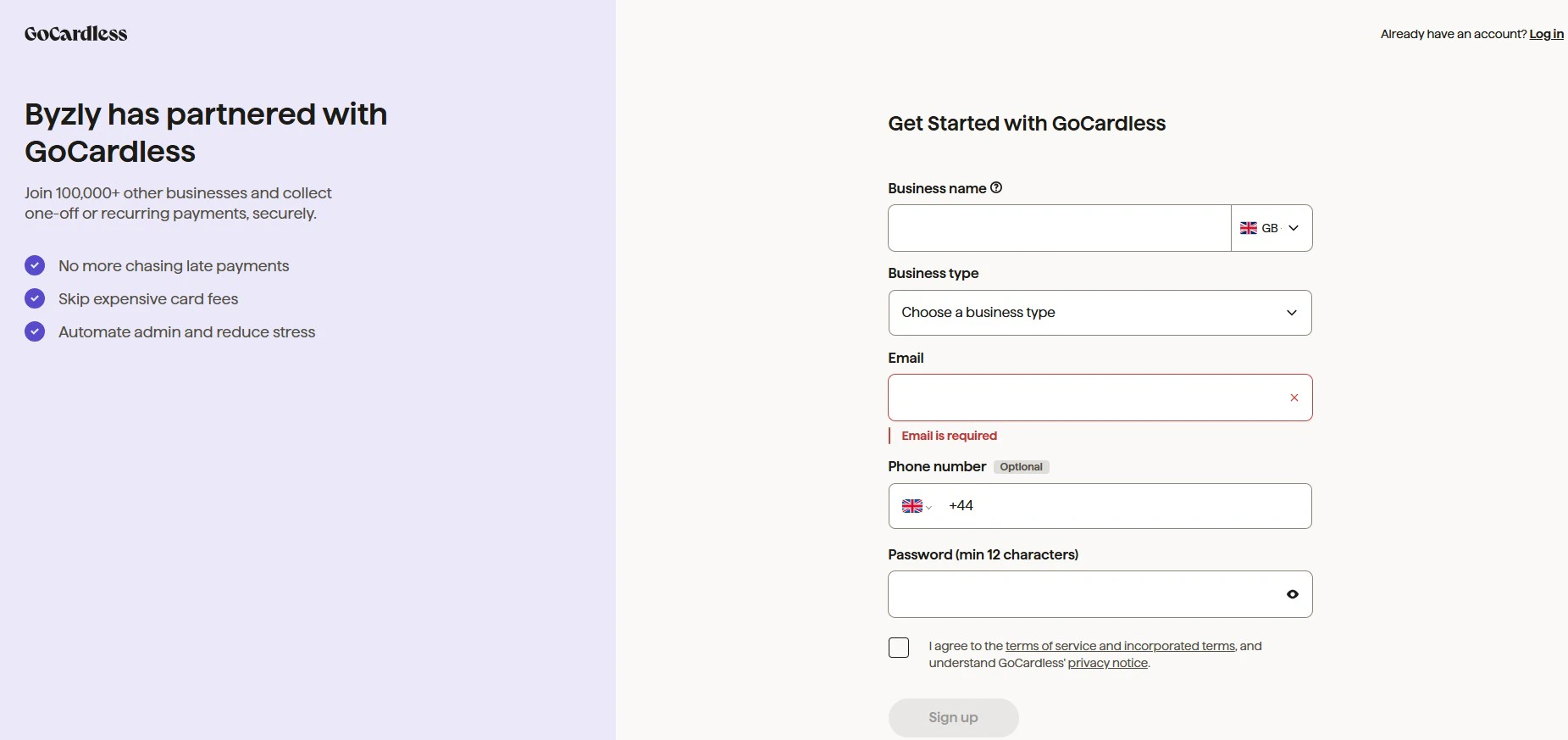
Step 3
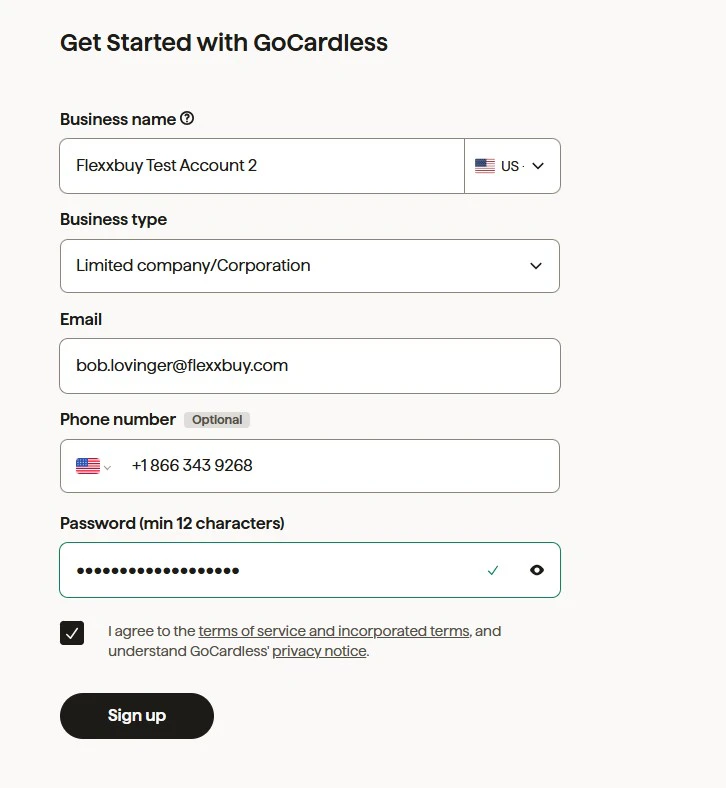
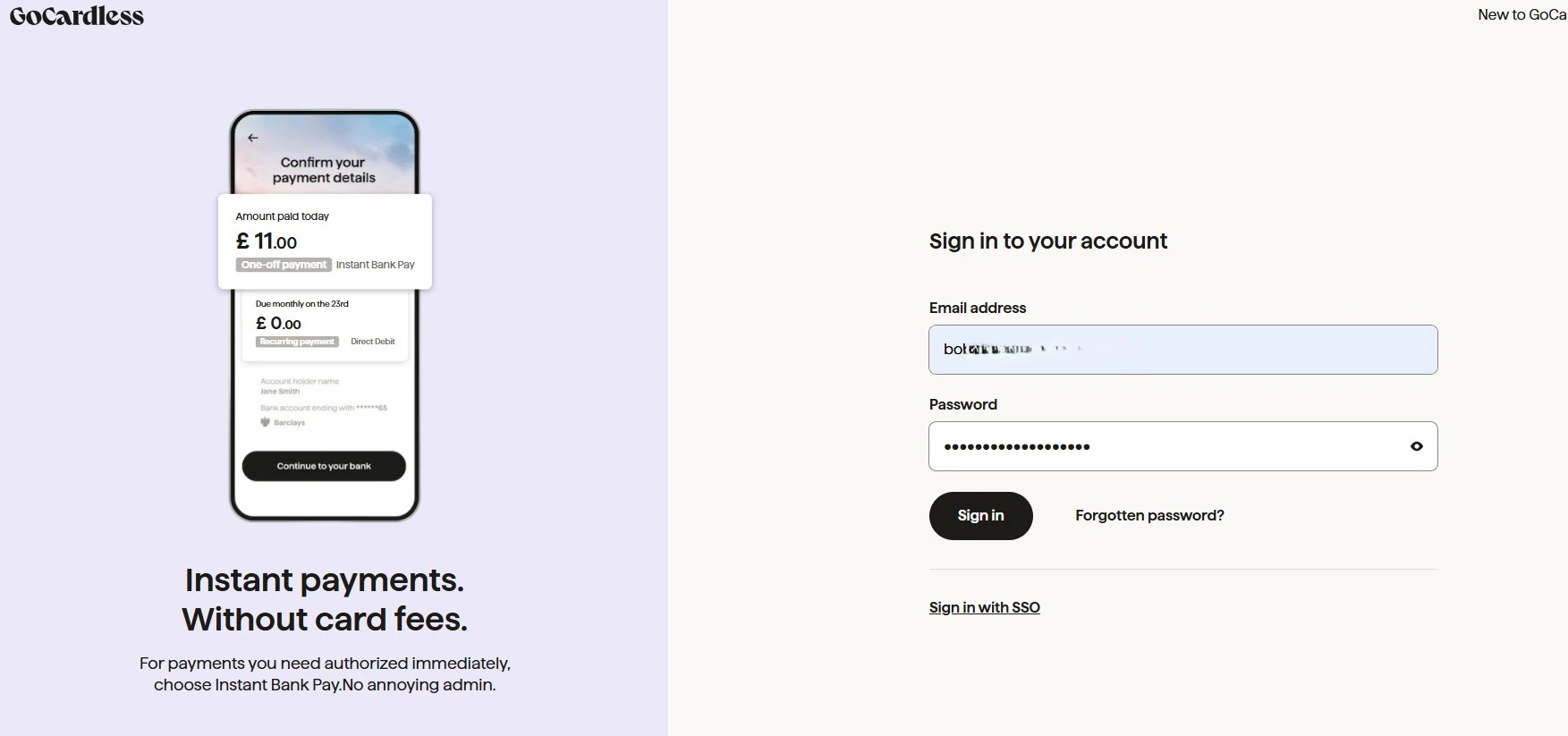
Complete The Signup Page in GoCardless and click on Sign up
Note: Make sure to change country to US
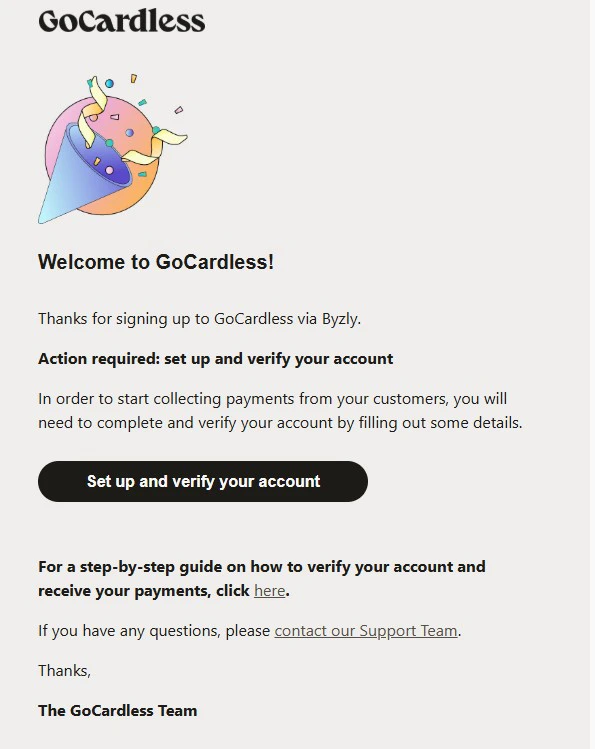
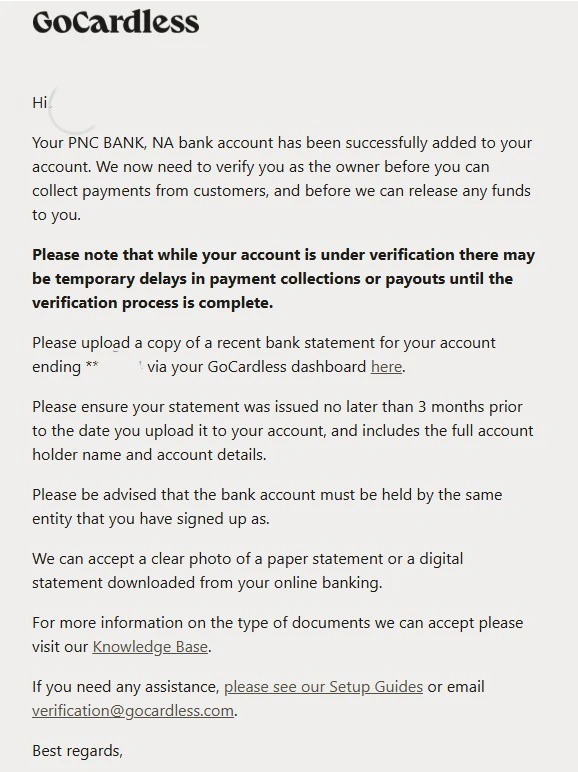
Go through the sign-up process with GoCardless. You'll be required to verify your business and your bank account. Once completed, you'll be under review.
Step 4
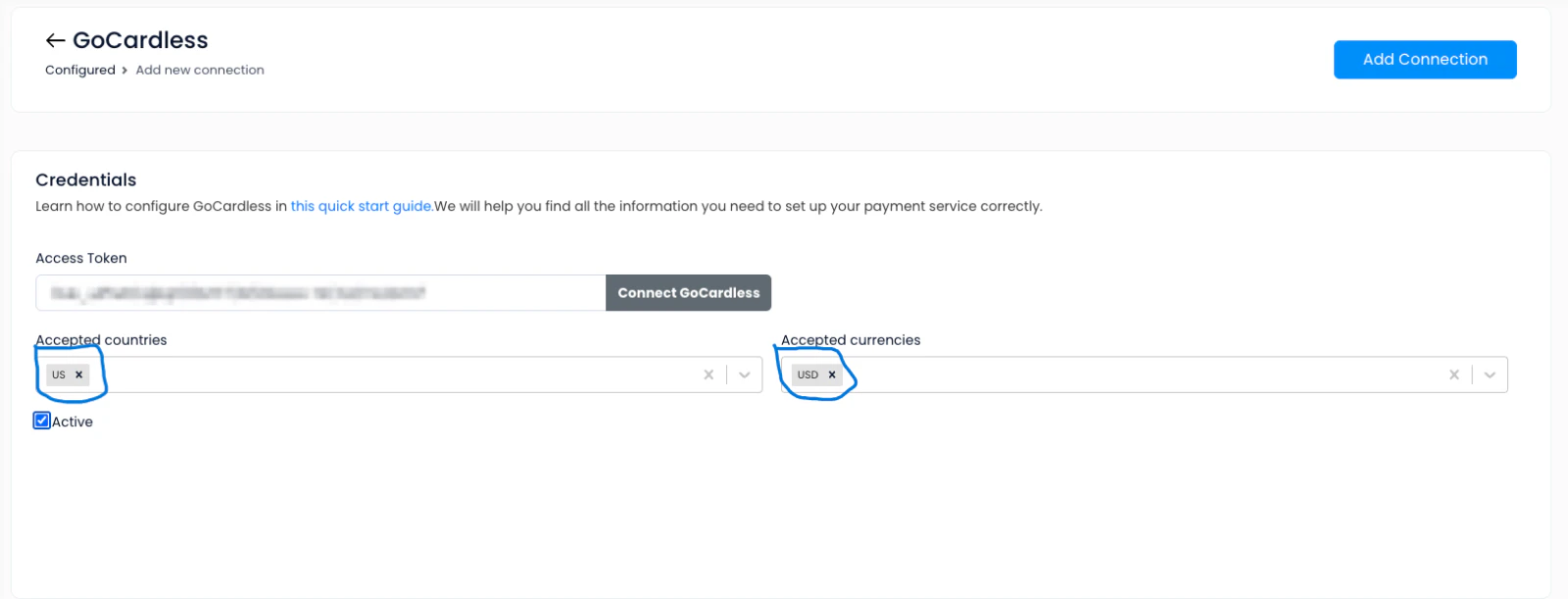
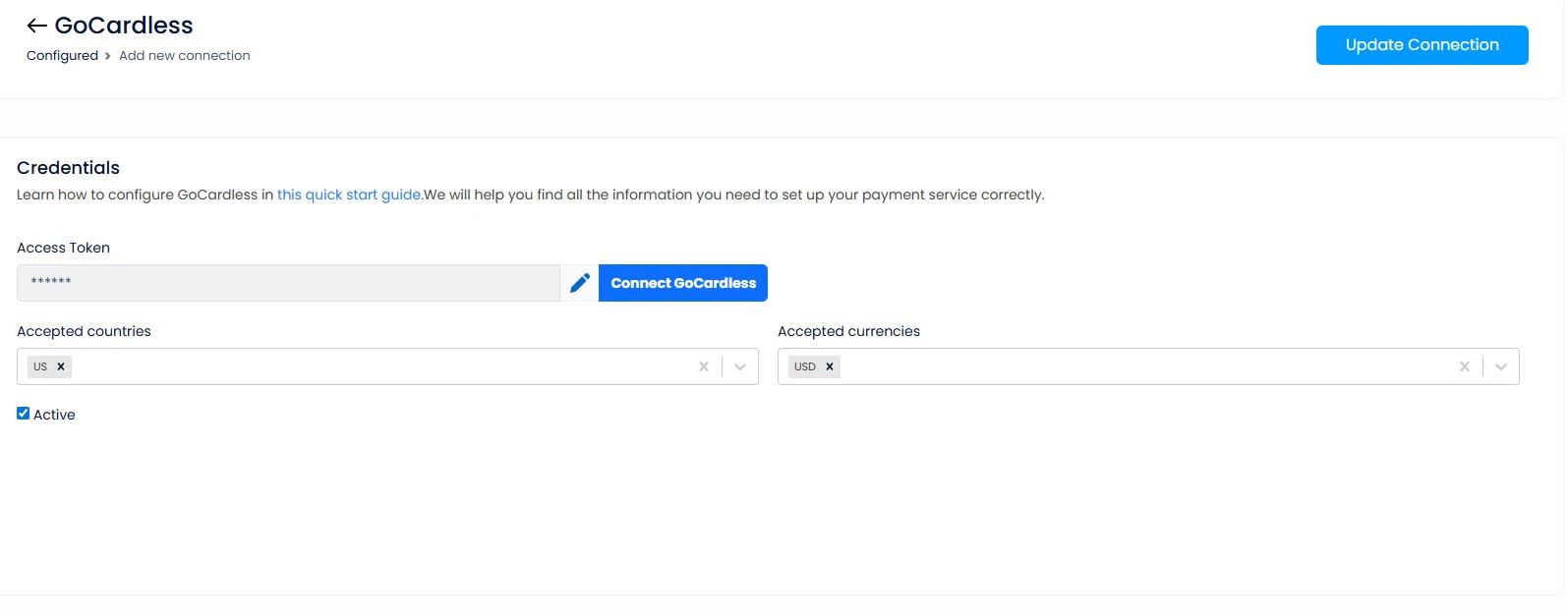
Redirect back into Byzly and Connect GoCardless
Your Access Token should be present in the GoCardless setup. Enter your country and currency (or multiple, if you operate in more than one country). Click on Add Connection .
Note: If you're not automatically redirected back to Byzly after setting up your GoCardless account, you'll need to go back to Byzly and click on GoCardless in the Payment Catalog.
Step 5
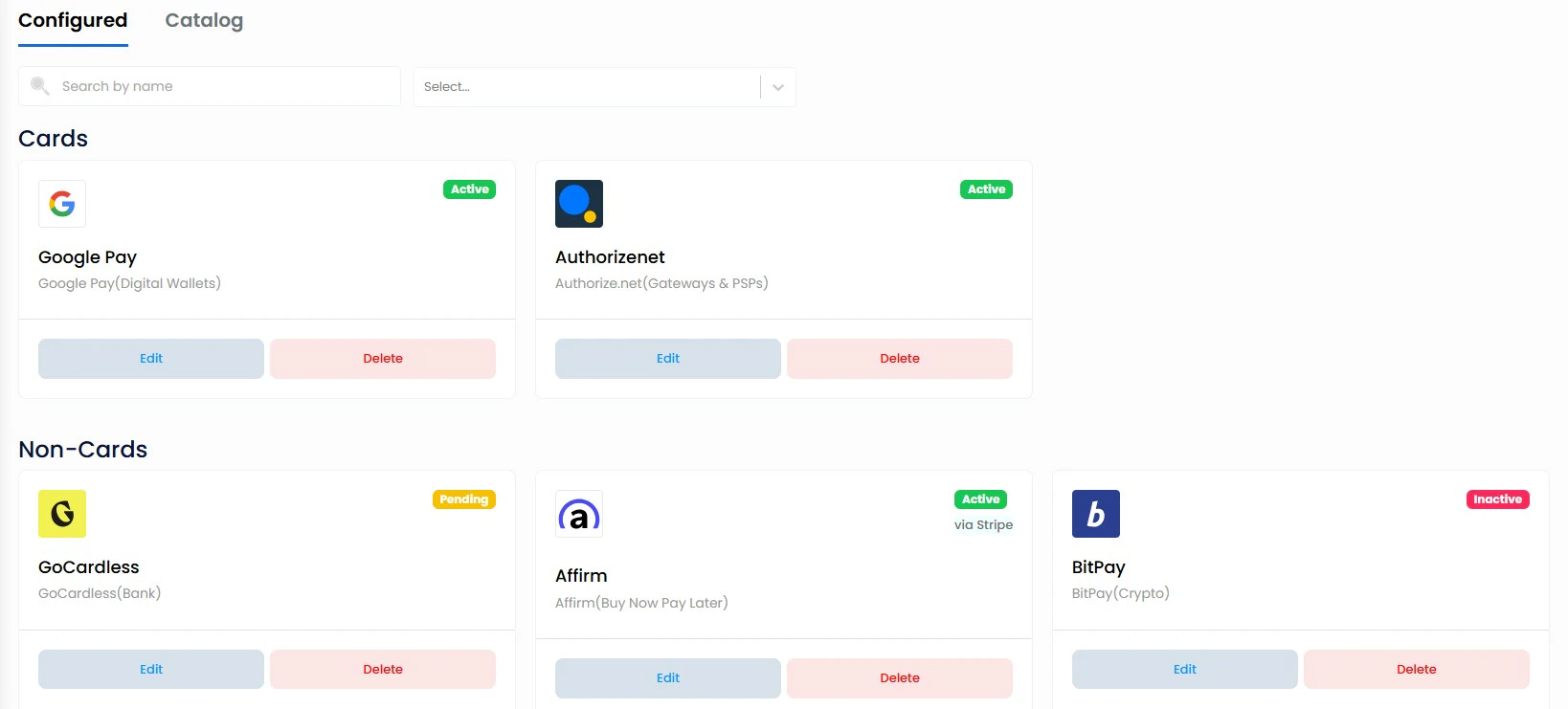
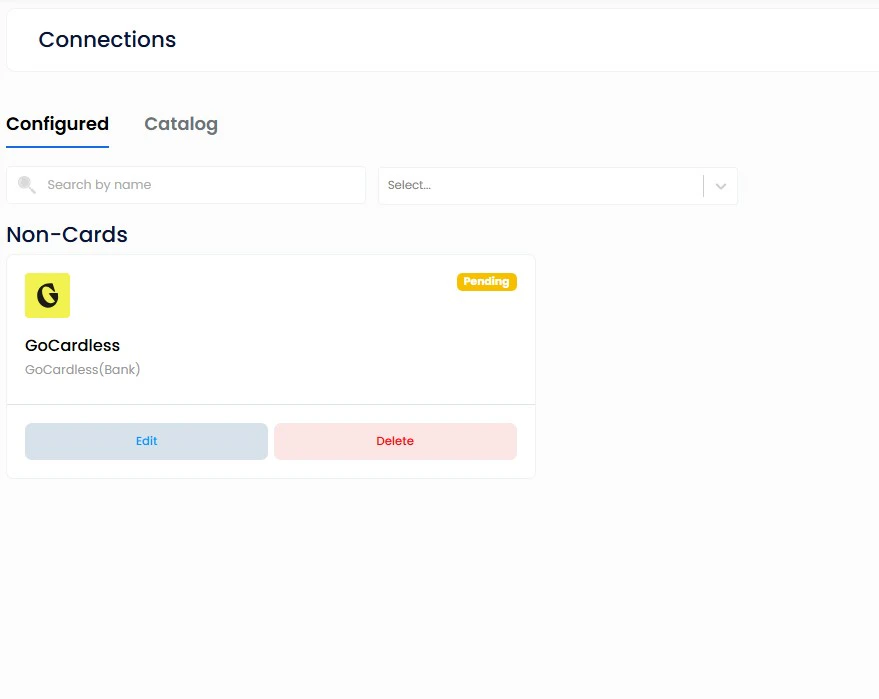
GoCardless should now appear in your Configured section as Pending
Your Access Token should be present in the GoCardless setup. Enter your country and currency (or multiple, if you operate in more than one country). Click on Add Connection.
Step 6
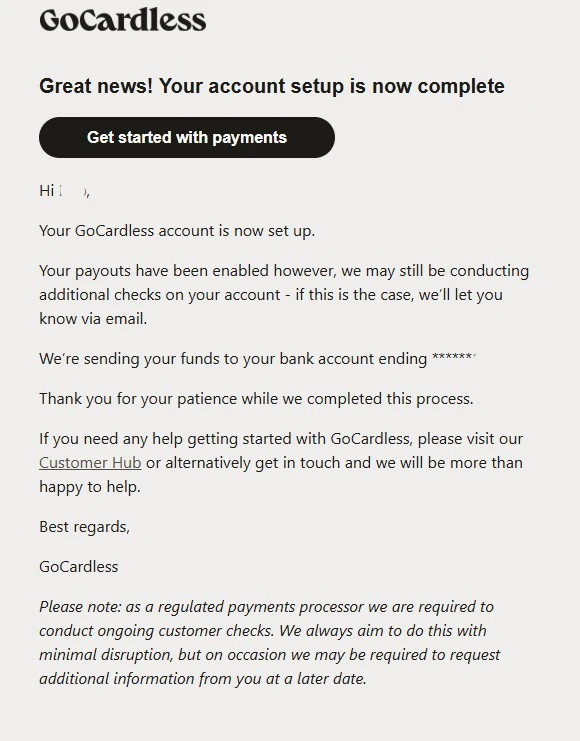
GoCardless review is complete and your account is setup.
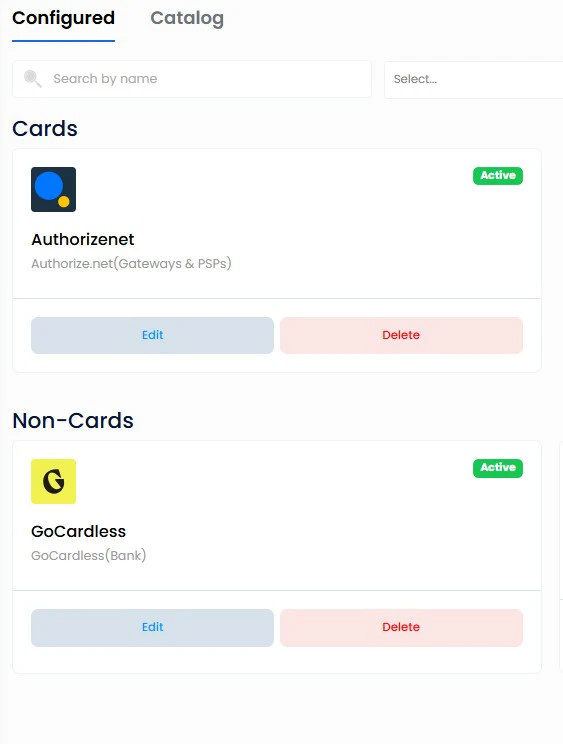
GoCardless should now appear in your Configured section as Active.
If the account is still appearing as Pending, click on Edit and Click on Connect GoCardless
Signing into your account should resolve the issue. If not, contact Support@Byzly.com and we'll assist.
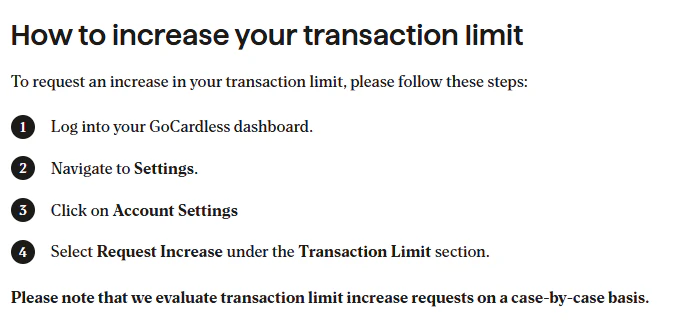
By default, GoCardless sets a transaction limit of $5,000. For higher sale amounts, you can create multiple transactions or use Byzly to process a debit card payment. You can also request a transaction limit increase through GoCardless. To request an increase, do the following.
Are you ready to start accepting ACH payments from your customers?